
ToolsGuide
How to Share a Private Repository on GitHub
A private GitHub repo can't be shared by link. Here is how public and private repositories differ, how to invite teammates, what access each person gets, and how to take it back.

By Akif Qureshi
Published 8 min read
On this page
To share a private repository on GitHub, you invite each person by their GitHub username or email address: unlike a Google Doc, there is no link that opens a private repo to whoever has it.
Key takeaways
Public vs private repository: the difference
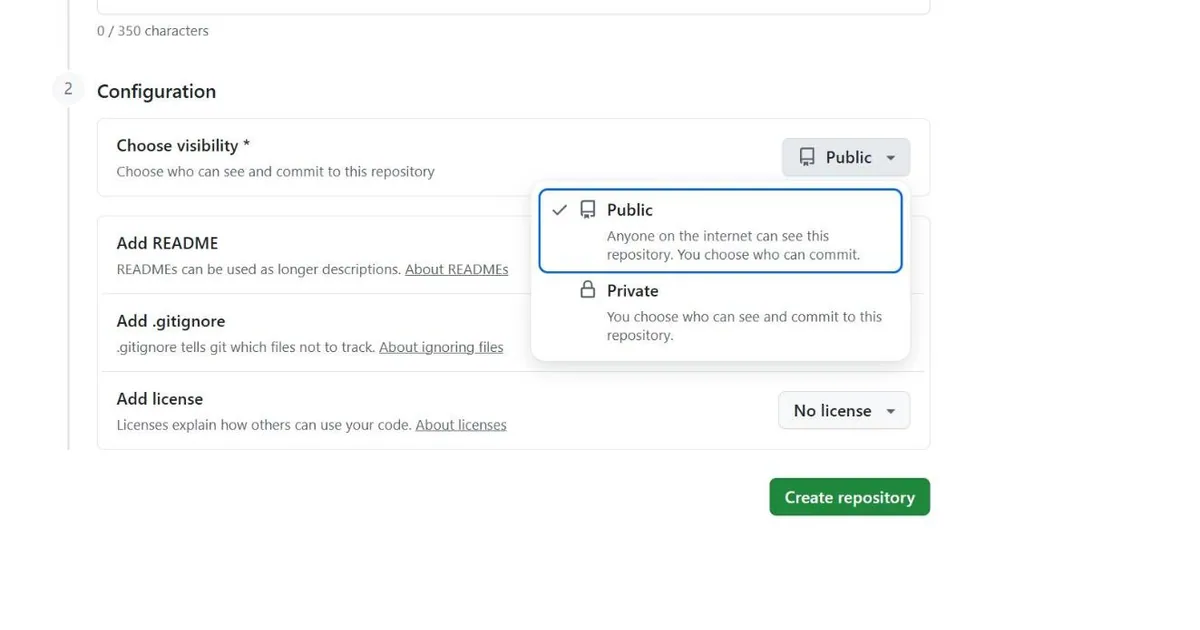
The difference is who can see the code, not who can change it. GitHub puts it plainly when you create a repository: a public repository means "anyone on the internet can see this repository. You choose who can commit", while private means "you choose who can see and commit to this repository".
| What changes | Public repository | Private repository |
|---|---|---|
| Who can see the code and history | Anyone, signed in or not | You and the people or teams you give access |
| Who can push changes | Only people you give write access | Only people you give write access |
| Who can fork it | Anyone | Only people with access, and their forks are deleted if you remove them |
| Found in Google and GitHub search | Yes | No |
| GitHub Pages on the free plan | Yes | Needs a paid plan (Pro, Team or Enterprise) |
| Branch protection on the free plan | Yes | Needs a paid plan |
| GitHub Actions on standard runners | Free | Free plan: about 2,000 Linux minutes a month ($12 of compute) and 500 MB of storage |
| Secret scanning | Automatic and free, across the whole history | Needs a paid security add-on |
Two details catch people out:
- Public doesn't mean open source. Without a licence, normal copyright applies: people can view and fork your code on GitHub, but they have no right to reuse it. Add a licence if you want them to.
- Making a repository public publishes its whole history. Every old commit becomes readable, including any password or API key that was committed once and deleted later.
Which one should you choose?
Choose public for code you want people to find, use or contribute to: open-source tools, portfolio projects, documentation. Choose private for client work, anything with business data or unreleased content, and anything you're not ready to show.
SERP Times is an example of the second case. Every article on this site is a file in a private GitHub repository, including drafts and posts scheduled for a future date. A public repository would let anyone read our articles before they're published, so the repository stays private and only the people who need it are invited.
Can I share a private repository with my teammates?
Yes. How much control you get depends on who owns the repository.
A repository on your personal account can have unlimited collaborators, even on GitHub Free. The catch is that they all get the same level of access, which is write access. According to GitHub's permission levels for a personal repository, collaborators can't be given read-only access. A collaborator can:
- clone, pull and push code, and create, merge and close pull requests;
- manage issues, labels and milestones, and edit the wiki and releases;
- remove themselves from the repository.
Only you, the owner, can invite people, change the visibility, rename the default branch, archive or delete the repository, and manage deploy keys, webhooks and security settings.
A repository in an organization lets you choose a role for each person or team. GitHub's repository roles are:
| Role | Give it to |
|---|---|
| Read | People who need to view or discuss the code, such as a client |
| Triage | People who manage issues and pull requests without writing code |
| Write | Developers and writers who push changes |
| Maintain | Project leads who manage the repository without destructive powers |
| Admin | People who need full control, including deleting the repository |
If more than two or three people work on the same repositories, create an organization, put people in teams and give each team a role. Adding or removing one person from a team then updates their access everywhere at once.
How to share a private repository on GitHub, step by step
You need to be the owner of a personal repository, or an admin of an organization's repository.
Invite a collaborator to a personal repository
- Open the repository on GitHub and click Settings.
- In the sidebar, under Access, click Collaborators.
- If GitHub asks you to confirm access, do it. When we opened this page for the SERP Times repository, GitHub asked us to verify our identity by email before showing it. This is GitHub's sudo mode, and a password, passkey, security key, GitHub Mobile or a two-factor code also work.
- Click Add people, then search for the person by username, full name or email address.
- Select them and click Add [name] to [repository].
The person gets an email and a GitHub notification. They can accept from either, or by opening the repository address with /invitations added at the end. Until they accept, the invitation shows as pending on the Collaborators page, where you can cancel it. GitHub's guide to inviting collaborators has the same steps with screenshots.
Give a teammate access to an organization repository
- Open the repository and click Settings.
- Under Access, click Collaborators & teams.
- Click Add teams to give a whole team access, or Add people for one person.
- Choose a role (Read, Triage, Write, Maintain or Admin) and confirm.
Someone who isn't a member of the organization becomes an outside collaborator. On the free plan that costs nothing. On a paid plan, each outside collaborator on a private repository uses a paid seat, and so does a pending invitation.
Do it from the command line
If you use the GitHub CLI, one API call sends the invitation. Replace the capitals with your own values:
gh api --method PUT repos/OWNER/REPO/collaborators/USERNAME -f permission=pullThe permission value (pull for read, plus triage, push, maintain or admin) only works on organization repositories. On a personal repository it is ignored and the person gets write access. GitHub allows 50 invitations per repository in 24 hours.
Can you share a private repository by link?
No. A private repository has no "anyone with the link" setting. Someone who opens its address without access sees GitHub's 404 page, not an "access denied" message, so the page doesn't even reveal that the repository exists.
What to do instead depends on what the other person needs:
- To work on the code: invite them as a collaborator, and remove them when the job is done.
- To look at it once, for example a recruiter or a client reviewing your work: invite them and remove them afterwards. Or publish a clean public copy, made as a new repository from the current files without the old commit history.
- To read one snippet: a secret gist is unlisted, but anyone with its URL can open it. Treat it as public and never put credentials in it.
- A tool or server that needs the code: don't share your own account. Use a deploy key (read-only by default, one repository each), a fine-grained personal access token limited to that repository, or the tool's GitHub app. SERP Times' hosting deploys from our repository through its own GitHub connection, so no person's login is involved. Note that fine-grained tokens always include read access to public repositories.
How to remove access or change visibility
To remove a collaborator: open Settings → Collaborators (or Collaborators & teams) and remove the person. Their forks of your private repository are deleted, but any clone already on their computer stays there. If they could see passwords, API keys or tokens in the code, change them.
To change visibility: at the bottom of the repository's Settings page, under Danger Zone, click Change visibility and confirm. GitHub's visibility guide lists the effects. The main ones:
- Stars and watchers are erased in both directions.
- Public to private: existing forks stay public and are detached from your repository, and on the free plan a GitHub Pages site is unpublished.
- Private to public: the code, its history and the Actions logs become visible to everyone, anyone can fork it, and push rulesets are disabled.
Before making a private repository public, search its history for secrets. Deleting a file in a new commit doesn't remove it from the old ones.
Common problems and fixes
| Problem | Likely cause and fix |
|---|---|
| "I never got the invitation" | Check spam and github.com/notifications, or open the repository address plus /invitations. Cancel and resend if needed. |
| They see a 404 page | They aren't signed in, are signed in with another account, or haven't accepted yet. |
git clone asks for a password and rejects it | GitHub doesn't accept account passwords for Git. Use gh auth login, an SSH key or a personal access token. |
| A collaborator can't open Settings | On a personal repository only the owner can. Use an organization and give them Maintain or Admin. |
| You want to share several repositories at once | Put them in an organization and give a team access, instead of inviting people repository by repository. |
Frequently asked questions
Is a private repository free on GitHub?
Yes. GitHub Free includes private repositories with unlimited collaborators. A few features on private repositories need a paid plan, such as GitHub Pages and branch protection rules, and GitHub Actions has a monthly allowance instead of being free.
Can a collaborator see my other private repositories?
No. An invitation gives access to one repository only. To give someone several repositories, invite them to each one, or put the repositories in an organization and add the person to a team.
Can I give someone read-only access to my private repository?
Not on a repository owned by a personal account: every collaborator there gets write access. Move the repository to an organization, where you can give the Read role, or for machines use a read-only deploy key or a fine-grained token limited to that repository.
Does my teammate need a GitHub account?
Yes. You can invite someone by email address, but they have to sign up for GitHub and accept the invitation before they can see the private repository.
Share
X (opens in a new tab)LinkedIn (opens in a new tab)WhatsApp (opens in a new tab)Akif Qureshi has worked in SEO for more than two years, auditing sites, planning content and tracking how Google updates change real traffic. He started SERP Times to report search changes clearly and to say exactly what site owners should do about them.
Certifications
- Google Analytics (Google)
- Google Ads Search (Google)
- HubSpot
- Digital Vidya
- DSIM
- Internship Studio