
AnalyticsGuide
What Is BigQuery? Pricing, Free Tier and SEO Uses
BigQuery is Google Cloud's serverless data warehouse. Here's what it costs in the US, what the free tier and sandbox really include, and how SEO and marketing teams use it for Search Console and GA4 data.

By Akif Qureshi
Published 11 min read
On this page
What is BigQuery? It's Google Cloud's serverless data warehouse: you load data into tables, query it with SQL, and Google runs the servers, storage and scaling for you. You pay for the data your queries scan and the data you store, and a free tier covers small workloads every month.
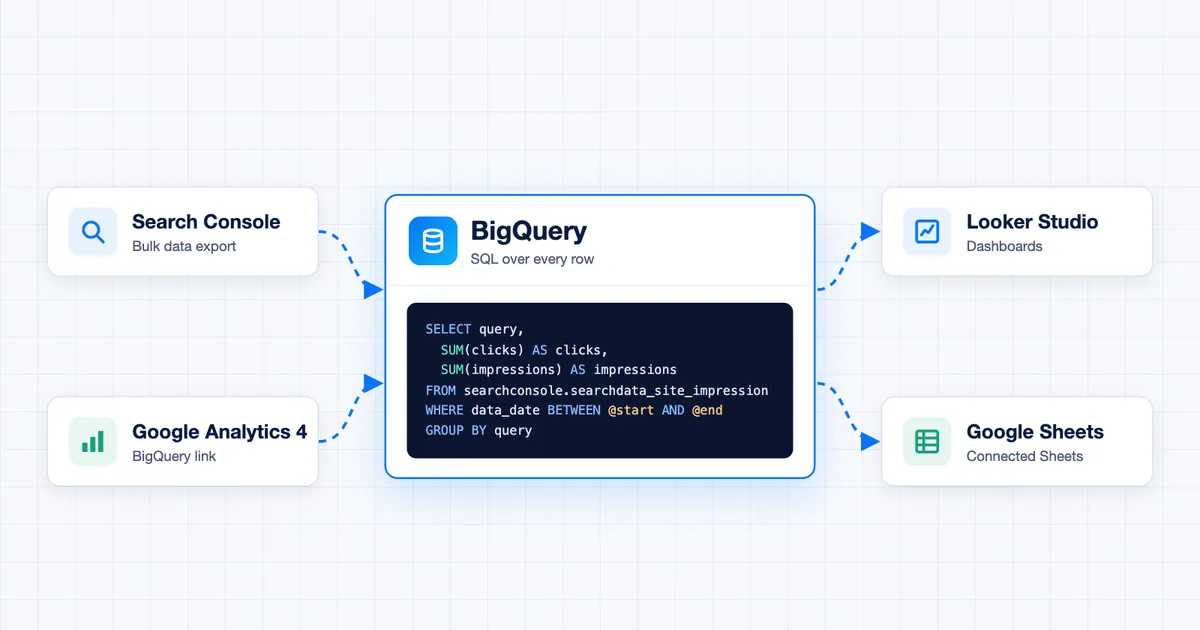
For SEO and marketing teams, BigQuery matters for one reason: Google sends your raw Search Console and Google Analytics 4 (GA4) data there for free. Once it's in BigQuery, you can analyze every query, page and event, not just the rows the reports show. This guide covers what BigQuery is, what it costs in the US, what the free tier and sandbox include, and how to set up and query your Search Console and GA4 data.
Key takeaways
What is BigQuery used for?
BigQuery is built for analysis, not for running a website. A database like MySQL handles many small reads and writes, such as orders and logins. A data warehouse like BigQuery handles fewer, bigger questions across millions or billions of rows, such as "which pages lost the most clicks from US mobile searches since the core update?"
Google describes BigQuery as a "fully managed and completely serverless enterprise data warehouse" (Google Cloud, accessed Nov 20, 2026). In practice that means:
- SQL in the browser. You write standard SQL in BigQuery Studio, the query editor in the Google Cloud console, and get results in seconds.
- No capacity planning. BigQuery assigns compute to each query. With on-demand pricing, a project can use up to 2,000 slots (units of compute) shared across its queries.
- Built-in connections. Search Console, GA4, Google Ads and many other Google products export to it. Looker Studio, Google Sheets (Connected Sheets) and most BI tools read from it.
- AI features. Gemini in BigQuery can write and explain SQL, and Google now includes those features in BigQuery pricing. BigQuery ML trains prediction models with SQL.
Common marketing uses include keeping Search Console data longer than the 16 months the Performance report holds, building dashboards that refresh daily, joining search data with GA4 conversions, and tracking a site through a Google core update page by page.
How BigQuery pricing works
BigQuery bills compute (running queries) and storage separately. Loading data in batches and exporting it are free. These are Google's US list prices from the BigQuery product page, accessed Nov 20, 2026. Rates vary by region, so check the pricing calculator for the region you pick.
| What you use | Price (USD) | Free each month |
|---|---|---|
| On-demand queries | $6.25 per TiB scanned | First 1 TiB |
| Capacity (Standard, Enterprise, Enterprise Plus editions) | From $0.04 per slot hour | None |
| Storage | From $0.01 per GiB per month | First 10 GiB |
| Batch loading and batch export | Free (shared slot pool) | Not applicable |
| Streaming inserts | $0.01 per 200 MiB | None |
| Storage Write API | $0.025 per GiB | First 2 TiB |
On-demand vs. capacity pricing. On-demand charges for the bytes each query reads. It suits most marketing teams, whose usage is small and uneven. Capacity pricing (editions) charges for slot hours, a reserved amount of compute, and suits companies with heavy, steady workloads. Start on demand; you can switch later.
Storage has two tiers. Google prices storage from $0.01 per GiB, with a lower rate for tables that haven't changed in 90 days. Daily export tables keep growing, so storage is the cost that creeps up over time.
What a month of SEO queries might cost
Say your team runs 200 queries a month on the Search Console export and each one scans 20 GiB. That's 4,000 GiB, or about 3.9 TiB.
- The first 1 TiB is free.
- The other 2.9 TiB cost 2.9 × $6.25 = about $18.16.
The same 200 queries could cost almost nothing if each one reads a week of data and a few columns instead of the whole table. How you write queries matters more than how many you run (see keeping costs down below).
BigQuery free tier vs. sandbox vs. free trial
Google offers three ways to try BigQuery for free. They are easy to mix up:
| Free tier | Sandbox | $300 free trial | |
|---|---|---|---|
| Who gets it | Every account, every month | Anyone with a Google Account | New Google Cloud customers |
| Credit card needed | Yes (billing account) | No | Yes |
| Storage | 10 GiB a month free | 10 GiB lifetime | Paid from credits |
| Queries | 1 TiB a month free | 1 TiB a month | Paid from credits |
| Table expiration | None by default | All tables expire after 60 days | None by default |
| Search Console export | Yes | No (needs billing) | Yes |
Sources: BigQuery sandbox documentation and BigQuery product page, accessed Nov 20, 2026.
The sandbox is good for learning SQL on Google's public datasets. It isn't a home for marketing data you want to keep: tables disappear after 60 days, the 10 GiB of storage is a lifetime limit (deleting data doesn't give it back), and it doesn't support streaming, DML statements (UPDATE, DELETE, INSERT) or the BigQuery Data Transfer Service.
For anything ongoing, add a billing account. You still get the free monthly limits, and you can set a budget alert so a mistake doesn't turn into a surprise bill.
How to export Search Console data to BigQuery
The Performance report in Search Console is enough for most day-to-day checks. The bulk data export goes further: Google says it includes "all the performance data available to Search Console for your property, with the exception of anonymized queries" (Search Console Help, accessed Nov 20, 2026). You get every query and URL row per day, with no 1,000-row table limit and no 16-month cutoff, as long as you keep the data.
If you only need a few extra rows or fields, the Search Analytics API may be enough. Pick BigQuery when you want a complete daily history you can query freely.
Set up the export
These steps follow Google's setup guide. You need owner access to the Search Console property and to the Google Cloud project.
- Create or pick a Google Cloud project with billing enabled. The sandbox won't work.
- Enable the APIs. In the Cloud console, go to APIs & Services, then Enabled APIs & Services, and enable the BigQuery API and the BigQuery Storage API.
- Create a dataset. Name it
searchconsole(orsearchconsole_plus a suffix if several properties export to one project). Choose the location carefully; you can't easily change it after exports begin. - Give Search Console permission. Under IAM and Admin, grant
search-console-data-export@system.gserviceaccount.comtwo roles: BigQuery Job User (at the project level) and BigQuery Data Editor (on the project or the dataset). - Start the export in Search Console. Go to Settings, then Bulk data export. Enter the project ID (not the project number), the dataset name and the same location, and click Continue.
The first export arrives within 48 hours. It doesn't include older data, so every day you wait is a day of data you won't get in BigQuery.
What the export tables contain
Search Console creates three tables in the dataset, documented in Google's table reference:
searchdata_site_impression: performance data for the whole property, by query, country, device and search type. Use it for totals, like the property-level numbers in the Performance report.searchdata_url_impression: the same data broken down by URL, plus true-or-false fields for search appearances such as job listings. Use it for page-level analysis.ExportLog: one row for each successful daily export.
Things to know before you query:
- Dates are in Pacific Time. The
data_datecolumn (the partition column) follows Google's Pacific-time day, not Eastern Time. - Rows repeat. Search Console adds data in pieces, so the same query, page and date can appear in several rows. Always use
SUM()andGROUP BY. - Position is stored as a sum. Average position is
SUM(sum_top_position) / SUM(impressions) + 1in the site table, andSUM(sum_position) / SUM(impressions) + 1in the URL table. - Countries use three-letter codes (ISO 3166-1 alpha-3), so the United States is
usa. - Search types include web, image, video, news, Discover and Google News, so filter to web search unless you want everything.
Two queries to start with
Replace your-project with your Google Cloud project ID. Both queries skip the last three days, which can still be incomplete.
Top US web search queries over the last four weeks:
SELECT
  query,
  SUM(clicks) AS clicks,
  SUM(impressions) AS impressions,
  ROUND(SAFE_DIVIDE(SUM(clicks), SUM(impressions)) * 100, 2) AS ctr_pct,
  ROUND(SUM(sum_top_position) / SUM(impressions) + 1, 1) AS avg_position
FROM `your-project.searchconsole.searchdata_site_impression`
WHERE data_date BETWEEN DATE_SUB(CURRENT_DATE(), INTERVAL 30 DAY)
                    AND DATE_SUB(CURRENT_DATE(), INTERVAL 3 DAY)
  AND is_anonymized_query = FALSE
  AND LOWER(country) = 'usa'      -- LOWER() matches the code in any case
  AND LOWER(search_type) = 'web'
GROUP BY query
ORDER BY clicks DESC
LIMIT 100;
Pages that lost the most clicks, last four weeks vs. the four weeks before:
WITH periods AS (
  SELECT
    url,
    SUM(IF(data_date >= DATE_SUB(CURRENT_DATE(), INTERVAL 30 DAY), clicks, 0)) AS clicks_recent,
    SUM(IF(data_date <  DATE_SUB(CURRENT_DATE(), INTERVAL 30 DAY), clicks, 0)) AS clicks_before
  FROM `your-project.searchconsole.searchdata_url_impression`
  WHERE data_date BETWEEN DATE_SUB(CURRENT_DATE(), INTERVAL 58 DAY)
                      AND DATE_SUB(CURRENT_DATE(), INTERVAL 3 DAY)
    AND LOWER(search_type) = 'web'
  GROUP BY url
)
SELECT
  url,
  clicks_before,
  clicks_recent,
  clicks_recent - clicks_before AS change
FROM periods
WHERE clicks_before >= 20
ORDER BY change
LIMIT 50;
The second query is the fastest way to see which pages a ranking drop hit. Pair it with a check of each page's title and content (our on-page SEO checklist covers what to look at).
How to export GA4 data to BigQuery
GA4's BigQuery export sends your raw event data, every page view, click and purchase, to your own project. Google's GA4 help page (accessed Nov 20, 2026) lists the main rules:
- The link is free. You pay only for BigQuery storage and queries. You can export to the sandbox, but usage above the sandbox limits is charged (and sandbox tables still expire after 60 days).
- Standard GA4 properties can export up to 1 million events a day in the daily export. Google Analytics 360 properties get much higher limits.
- Two schedules. The daily export writes a full day's table once a day. The streaming export adds events through the day, which costs extra in BigQuery because it uses streaming inserts.
- No backfill and no re-export. Like Search Console, GA4 starts exporting from the day you link it.
To set it up, open GA4 Admin, go to Product links, then BigQuery links, click Link, choose your Cloud project and data location, and pick the daily or streaming export. GA4 creates a dataset named analytics_ followed by your property ID, with one events_YYYYMMDD table per day.
GA4 data in BigQuery doesn't match the GA4 reports exactly. The reports apply modeling, thresholds and attribution that the raw export doesn't, so expect small differences and don't try to make them match to the last session. If you're still deciding which tool collects your data, see our comparison of GA4, PostHog and Matomo.
Combining Search Console and GA4 data
The payoff of having both exports in one project is joining them. Search Console tells you how people found a page; GA4 tells you what they did after landing on it. Joined by landing page URL and date, they answer questions neither tool can answer alone:
- Which queries bring visitors who convert, not just visitors who click?
- Which pages rank well but have high exit rates (the content doesn't match the search)?
- How much revenue did a section lose during a core update?
Two cautions. First, URLs rarely match out of the box: GA4's page_location includes query strings like UTM tags, and Search Console's URLs don't. Strip parameters and match on the cleaned URL. Second, Search Console's dates are Pacific Time while GA4 uses your property's time zone (for a US East Coast business, usually Eastern Time). Compare weeks or months, not single days. Our guide to the difference between Search Console and Google Analytics explains why their numbers differ in the first place.
How to keep BigQuery costs down
Most surprise BigQuery bills come from a few habits. These keep costs near zero for a typical small or midsize site:
- Always filter by date. The Search Console and GA4 export tables are partitioned by date, so a
WHERE data_date BETWEEN …clause means BigQuery reads only those days. - Never use
SELECT *. On-demand pricing counts the columns you read. Name only the columns you need. - Check the estimate before you run. The query editor shows how much data a query will process ("This query will process 1.2 GB when run"). Treat anything in the hundreds of gigabytes as a reason to add filters.
- Set a partition expiration. Data piles up indefinitely by default. Keep 16 to 24 months of daily rows if that's all you'll use. Google asks for at least 14 days on Search Console tables, and warns that schema changes (like adding a column) break the export.
- Create a budget alert in Google Cloud Billing so you get an email at, say, $10 and $25.
- Save summary tables. If a dashboard reads the same monthly totals every day, write them to a small table once and point Looker Studio at that table instead of the raw export.
When you don't need BigQuery
BigQuery is worth it once you hit the limits of the standard tools. If your site gets a few thousand clicks a month and you check performance once a week, the Search Console Performance report and GA4's own reports will answer most questions, and a Looker Studio dashboard on the built-in Search Console connector costs nothing to run.
Even then, turn on both exports. They cost little or nothing at small volumes, and because neither tool backfills, the history you start collecting today is what you'll be able to analyze next year.
What to do now
- Create a Google Cloud project with billing and a budget alert.
- Set up the Search Console bulk data export today, since it can't recover past days.
- Link GA4 to the same project with the daily export.
- After a few days, run the two starter queries above and compare their totals with the Performance report.
- Add a partition expiration once you've decided how much history to keep.
Sources
- Google Cloud: BigQuery product page and pricing, accessed Nov 20, 2026
- Google Cloud: Try BigQuery using the sandbox, accessed Nov 20, 2026
- Search Console Help: About bulk data export of Search Console data to BigQuery, accessed Nov 20, 2026
- Search Console Help: Start a new bulk data export, accessed Nov 20, 2026
- Search Console Help: Table guidelines and reference, accessed Nov 20, 2026
- Analytics Help: BigQuery Export, accessed Nov 20, 2026
Frequently asked questions
Is BigQuery free?
Partly. Every account gets 10 GiB of storage and 1 TiB of query processing free each month. The BigQuery sandbox lets you use those limits without a credit card, but its tables expire after 60 days. Beyond the free limits, on-demand queries cost $6.25 per TiB scanned (US list price as of Nov 20, 2026).
Can I send Search Console data to the BigQuery sandbox?
No. Google's setup guide for the Search Console bulk data export says you need a Google Cloud project with billing enabled. You still get the free monthly storage and query limits, so a small site may pay little or nothing.
Does the Search Console export include my old data?
No. The bulk data export starts from the day you set it up and doesn't backfill. For earlier data, use the Search Console API or the Performance report. Set up the export as early as you can.
Do I need to know SQL to use BigQuery?
It helps, but you can start with a few copied queries and change the dates and filters. BigQuery also has Gemini features that write and explain SQL from a plain-English request, and you can connect Looker Studio to build charts without writing queries yourself.
How do I stop BigQuery from running up a big bill?
Filter every query by date (the export tables are partitioned by date), select only the columns you need, check the bytes estimate before you run a query, set a partition expiration on export tables, and create a budget alert in Google Cloud Billing.
Share
X (opens in a new tab)LinkedIn (opens in a new tab)WhatsApp (opens in a new tab)Akif Qureshi has worked in SEO for more than two years, auditing sites, planning content and tracking how Google updates change real traffic. He started SERP Times to report search changes clearly and to say exactly what site owners should do about them.
Certifications
- Google Analytics (Google)
- Google Ads Search (Google)
- HubSpot
- Digital Vidya
- DSIM
- Internship Studio