
SEOGuide
How to Create a Sitemap and Submit It to Google
Most sites already have a sitemap their platform made for them. Here's how to check, how to create a sitemap when you don't have one, which URLs belong in it, the format rules that trip people up, and how to submit it to Google and Bing.

By Akif Qureshi
Published 7 min read
On this page
The quickest answer to how to create a sitemap is that you often don't have to: WordPress, Shopify, Squarespace and Wix already generate one, so check for it first and only build an XML file yourself when your site doesn't have one.
This guide covers the XML sitemap, the file that tells search engines which URLs you want crawled. Two other things share the name: a visual sitemap is a diagram for planning a site's structure, and an HTML sitemap is a page of links for visitors. Neither one is submitted to Google.
Key takeaways
Do you need a sitemap?
Google says a sitemap helps most sites but isn't always necessary. You may not need one if your site has about 500 pages or fewer, every important page is linked from your home page, and you don't rely on video, image or news results. A small bakery in Portland with a home page, a menu and a contact page will be found through its links.
You benefit most if your site is large, new with few links pointing to it, or full of video, images or news. And a sitemap doesn't guarantee anything: Google says it "doesn't guarantee that all the items in your sitemap will be crawled and indexed." It helps Google find pages; it doesn't make them rank.
Step 1: Check whether you already have one
Open https://yourdomain.com/robots.txt and look for a Sitemap: line, then try the usual addresses:
| Platform | Sitemap | What to do |
|---|---|---|
| WordPress (no SEO plugin) | /wp-sitemap.xml, built in since version 5.5 | Nothing, or let your SEO plugin replace it |
| WordPress with Yoast SEO or Rank Math | Usually /sitemap_index.xml | Turn on the plugin's sitemap feature |
| Shopify | /sitemap.xml, updated automatically | Make sure the store isn't in private mode, or search engines can't read it |
| Squarespace | /sitemap.xml, generated automatically | Nothing |
| Wix | /sitemap.xml, updated when you publish | Nothing |
If you find one, skip to Step 4. Our guide to finding the sitemap of a website has more ways to look.
If your site is a custom build, a static site or a web app, keep reading. Many frameworks can generate a sitemap from your routes or database; Google recommends generating it automatically for anything beyond a few dozen URLs, so it stays current.
Step 2: Choose which URLs to include
A sitemap is a list of the pages you want in search, so be strict:
Include pages that return a 200 status, are the canonical version of their content and that you want people to find: the home page, services or product pages, location pages, articles and category pages.
Leave out:
- URLs that redirect (list the final URL; see our guide to the 302 redirect for why the redirect type matters)
- Pages with a
noindextag or blocked by robots.txt - Duplicates, such as tracking or sort-order versions of a page that has a clean URL
- Error pages, login pages, cart and checkout pages, and internal search results
- Thank-you and confirmation pages
Step 3: Build the sitemap file
The smallest valid XML sitemap looks like this:
<?xml version="1.0" encoding="UTF-8"?>
<urlset xmlns="http://www.sitemaps.org/schemas/sitemap/0.9">
  <url>
    <loc>https://www.example.com/</loc>
    <lastmod>2026-11-02</lastmod>
  </url>
  <url>
    <loc>https://www.example.com/water-heater-repair/</loc>
    <lastmod>2026-10-14</lastmod>
  </url>
</urlset>
Each page gets a <url> block with its address in <loc>. The <lastmod> date is optional.
The rules that trip people up
| Rule | Detail |
|---|---|
| Size | At most 50,000 URLs and 50 MB uncompressed per file. Gzip compression is allowed. |
| Encoding | UTF-8, with special characters escaped: an & in a URL becomes &. |
| URLs | Full absolute URLs, with the same protocol and host you want indexed (https://www. if that's your canonical version). |
| Location | A sitemap covers its own folder and below, so put it at the root to cover the whole site. |
lastmod | Google uses it only when it's "consistently and verifiably accurate." Change it when the main content changes, not when the copyright year does. |
priority and changefreq | Google ignores both, so you can leave them out. |
More than 50,000 URLs: use a sitemap index
Split your URLs into several sitemaps, for example by section, and list them in an index file:
<?xml version="1.0" encoding="UTF-8"?>
<sitemapindex xmlns="http://www.sitemaps.org/schemas/sitemap/0.9">
  <sitemap>
    <loc>https://www.example.com/sitemap-products.xml</loc>
  </sitemap>
  <sitemap>
    <loc>https://www.example.com/sitemap-blog.xml</loc>
  </sitemap>
</sitemapindex>
An index can list up to 50,000 sitemaps, and the sitemaps it lists must be on the same site. You then submit only the index.
Build it with the XML Sitemap Generator
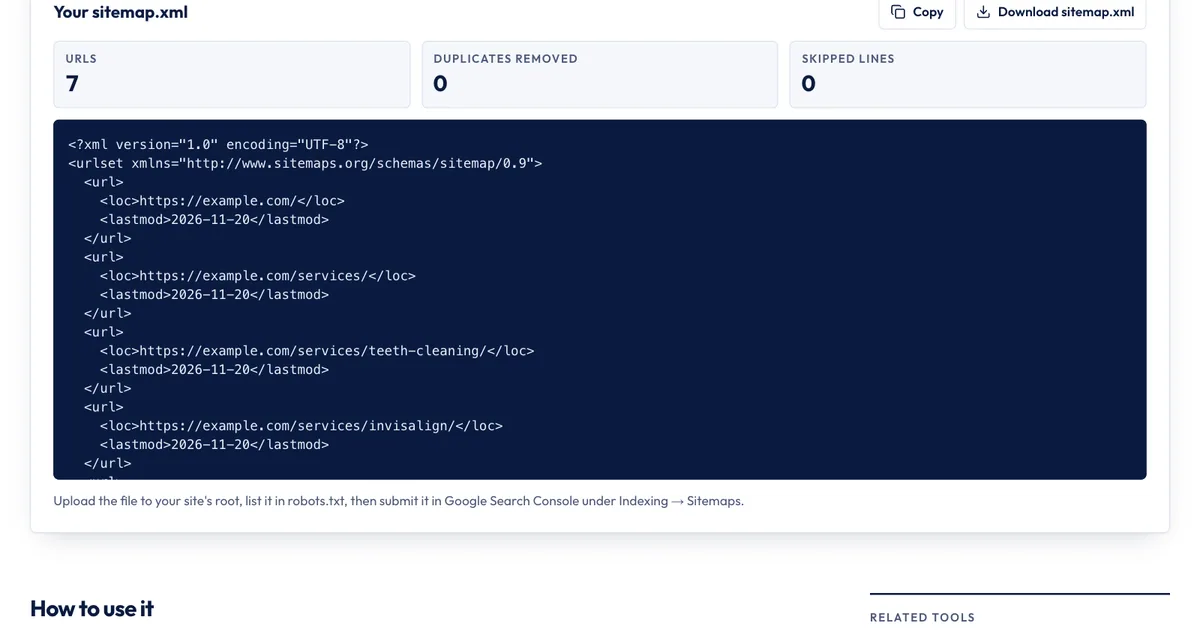
If you have a list of URLs, from a spreadsheet, a crawl or your CMS export, our free XML Sitemap Generator turns it into a valid file in your browser:
- Paste your URLs, one per line. To give a page its own date, add it after the URL, like
https://example.com/pricing/ 2026-10-20. - Tick Add a lastmod date only if you have an accurate date for the pages without one. Leave change frequency and priority blank.
- Read the warnings and the counts. Invalid lines are skipped, duplicates are removed, and URLs on a different host are flagged.
- Copy the XML or click Download sitemap.xml.
What it doesn't do: it doesn't crawl your site to find pages, so the list has to come from you. It doesn't check whether each URL returns a 200 or carries noindex. It keeps the first 50,000 URLs and tells you to split the rest, but it doesn't build the index file. And a static file doesn't update itself: if you publish often, a CMS plugin or a sitemap generated by your code is less work than rebuilding by hand.
Step 4: Upload it and list it in robots.txt
Upload the file to your site's root folder so it loads at https://yourdomain.com/sitemap.xml. Open that address in a browser to confirm it loads without a login or an error.
Then add a line to your robots.txt file, anywhere in the file:
Sitemap: https://www.example.com/sitemap.xmlUse the full URL. You can list several sitemaps, one per line. Any search engine that reads robots.txt can then find your sitemap, including ones you never submit it to.
Step 5: Submit it to Google and Bing
Google Search Console: open your property, go to Indexing, then Sitemaps, enter the sitemap's address under "Add a new sitemap" and click Submit. You need owner permissions on the property.
After a while the report shows a status for each file:
- Success: Google read it with no errors. Compare the number of discovered URLs with what you expected.
- Has errors: Google read it but found problems. Open the file's details to see which.
- Couldn't fetch: Google couldn't download it. Check the address, robots.txt rules and any login or firewall in the way.
The report only lists sitemaps submitted there or through the API, not ones Google found through robots.txt.
Bing Webmaster Tools has its own Sitemaps page where you submit the same URL. It takes about a minute.
Don't use the old google.com/ping?sitemap= address. Google announced in June 2023 that it was retiring that endpoint, and robots.txt and Search Console are now the ways to tell Google about a sitemap.
Step 6: Keep it accurate
- Rebuild or regenerate it when pages change. A sitemap full of deleted pages and redirects tells Google the file isn't reliable.
- Keep
lastmodhonest. Updating every date daily, without real changes, teaches Google to ignore them. - Check it after big changes. Run the live sitemap through our Robots.txt & Sitemap Checker after a redesign or platform move to confirm it loads, is valid XML and is listed in robots.txt.
- Watch the Page indexing report in Search Console. You can filter it by sitemap to see which submitted URLs Google indexed and why others weren't.
Sources
All accessed Nov 20, 2026:
- Google Search Central: What is a sitemap
- Google Search Central: Build and submit a sitemap
- Google Search Central: Manage your sitemaps with sitemap index files
- Google Search Central Blog: Sitemaps ping endpoint is going away (June 2023)
- Search Console Help: Manage your sitemaps using the Sitemaps report
- sitemaps.org: Sitemaps XML format
- Make WordPress Core: New XML Sitemaps Functionality in WordPress 5.5
- Shopify Help Center: Finding and submitting your sitemap
- Squarespace Help Center: Verifying your site with Google Search Console
- Wix Help Center: Understanding your site's sitemap file
Frequently asked questions
How often should I update my sitemap?
Whenever you add, remove or significantly change pages. A sitemap your CMS generates updates itself. A file you made by hand or with a generator doesn't, so rebuild it after each batch of changes and keep the lastmod dates accurate.
Can a sitemap include images and videos?
Yes. Google supports image, video and news extensions to the XML sitemap format, so you can list images and videos with the pages they appear on, or keep them in separate sitemaps. Sites that rely on image or video search benefit most.
How long does Google take to read a new sitemap?
There's no fixed time, and Google says submitting a sitemap is only a hint. The Sitemaps report in Search Console shows when Google last read each file and how many URLs it found, so check back there after a few days.
Should I use an XML sitemap or a text sitemap?
Either works for Google. A text sitemap is a plain .txt file with one full URL per line, which is fine for a small site. XML lets you add lastmod dates and image or video details, and it's what most tools and platforms produce.
Share
X (opens in a new tab)LinkedIn (opens in a new tab)WhatsApp (opens in a new tab)Akif Qureshi has worked in SEO for more than two years, auditing sites, planning content and tracking how Google updates change real traffic. He started SERP Times to report search changes clearly and to say exactly what site owners should do about them.
Certifications
- Google Analytics (Google)
- Google Ads Search (Google)
- HubSpot
- Digital Vidya
- DSIM
- Internship Studio